<aside> 👋
Welcome!
This guide shows you how to connect your Pinpoint account to Candid. Once connected, moving a candidate into a stage of your choice sends them to Candid automatically: Candid texts them, calls them for an AI phone interview, screens their resume, and posts the full result back into Pinpoint as a native assessment. Setup takes about ten minutes.
</aside>
<aside> 💡
Tip: Candid needs each candidate's phone number. On your job's application form, set Require Phone Number to Yes so nobody reaches the interview stage without one.
</aside>
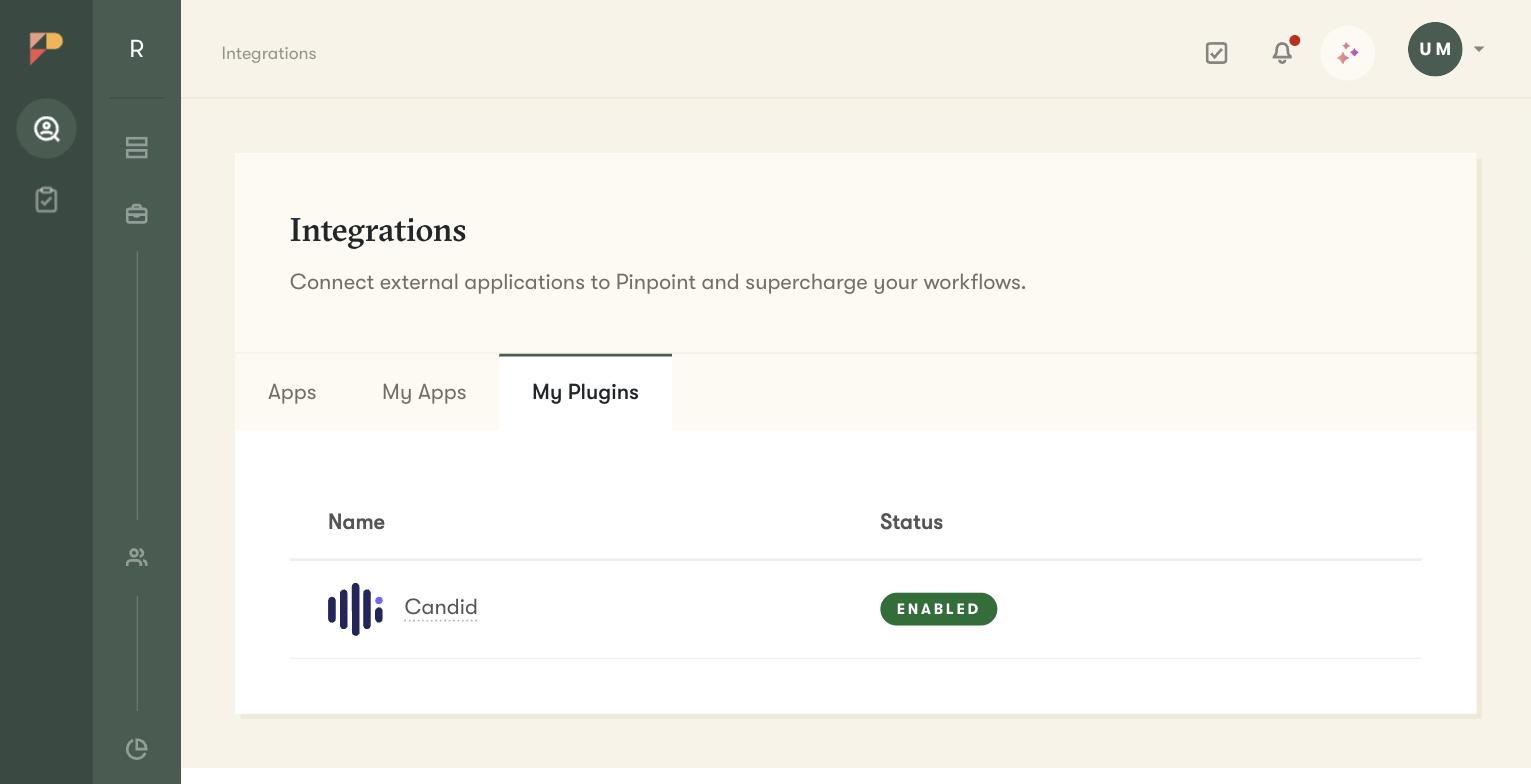
The Integrations page showing the Candid plugin under My Plugins with status Enabled
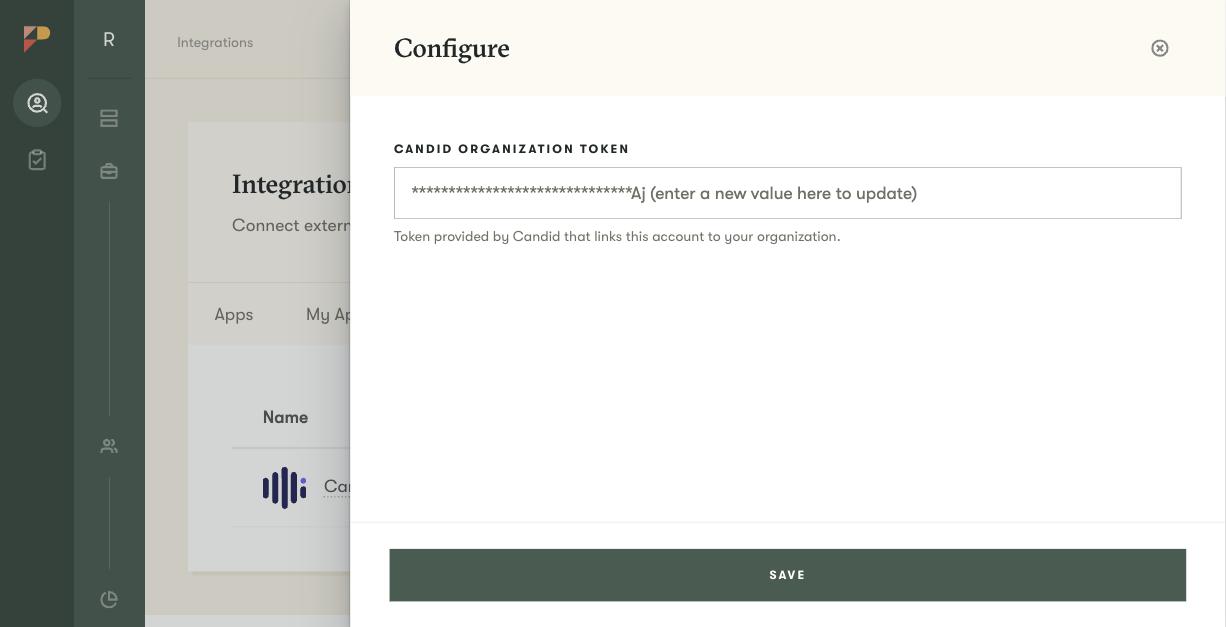
The Candid plugin configuration panel with the Candid Organization Token field
<aside> ℹ️
Note: The token links your Pinpoint account to your Candid organization. If you run several communities as separate Candid organizations, each one has its own token — use the one for the organization this Pinpoint account belongs to.
</aside>
This is where you decide which stage triggers the interview. Every candidate who enters that stage is sent to Candid automatically — no clicks needed.